Editing Videos
Editing videos is so fun! There's so many ways to use it, but we'll mostly be focusing on it's more popular uses, social media.
This tutorial is going to be using CapCut. Just look it up on the app store, or click here.
I'll be walking you through how I made this:
(This tutorial assumes that you already have the videos and simply need to edit them together)
Click here to see the video!So once again, this is assuming that you have your videos.
To add the start image, you'll just need to put in a full-black image. You can get that easily by just laying your phone camera down on a dark surface and taking a picture.
Once you've got your black background in select the 'overlay' button:
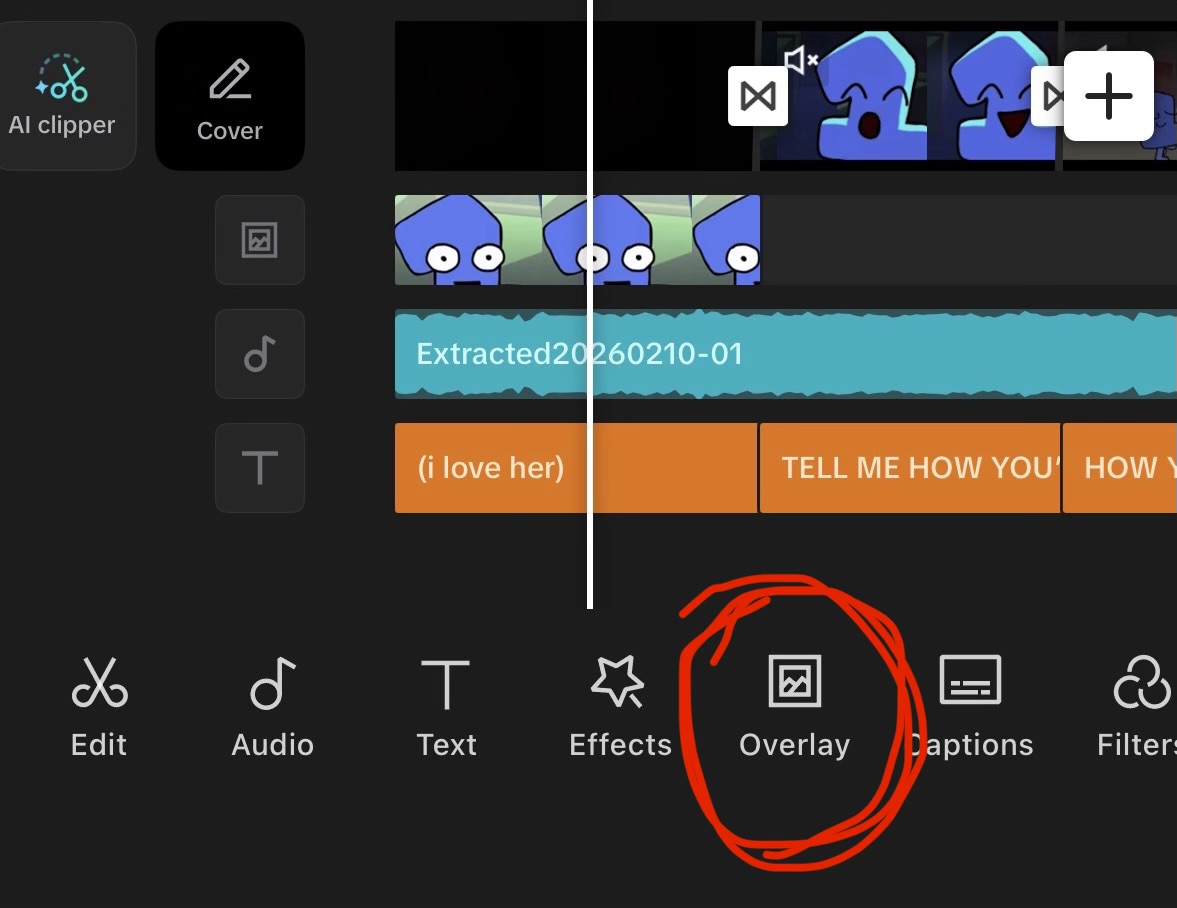
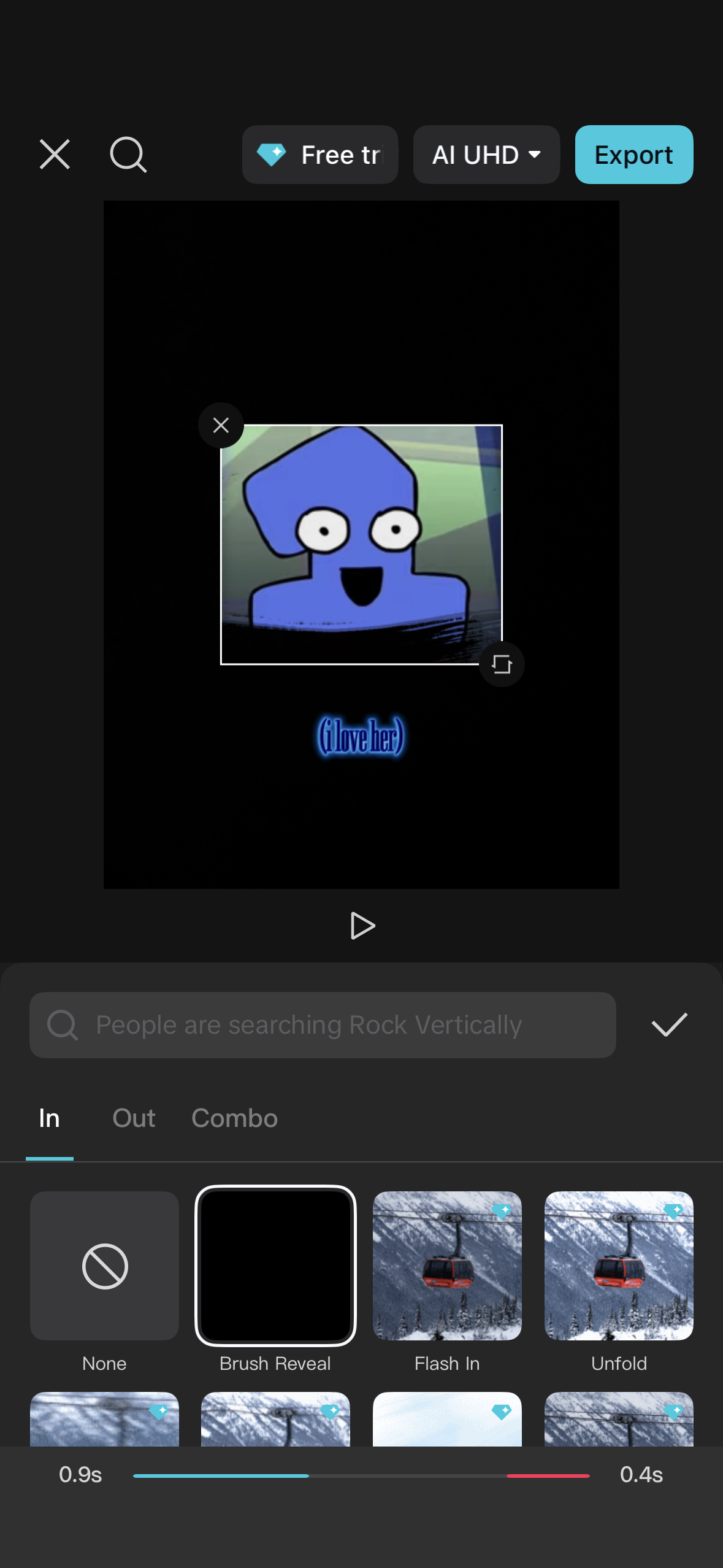
To add transitions, select your overlay then hit animations. You can then look around and find ones you like!
To add the extra videos and images, you'll just press the white + icon next to the tracks and to the right. Go ahead and add those now!
Now that you've put in your videos and images, you'll want to add your text! Hit the text button and style it using 'font' and 'effects'. Effects are sorted mostly by color, but there's also the 'textured' and 'glow' tabs.
Now, transitions! For the text, just go the animations tab, similarly to the overlay. For the images and videos, however, you'll need to tap the small white icon between each of them on the track. The sliders at the bottom will change the duration.
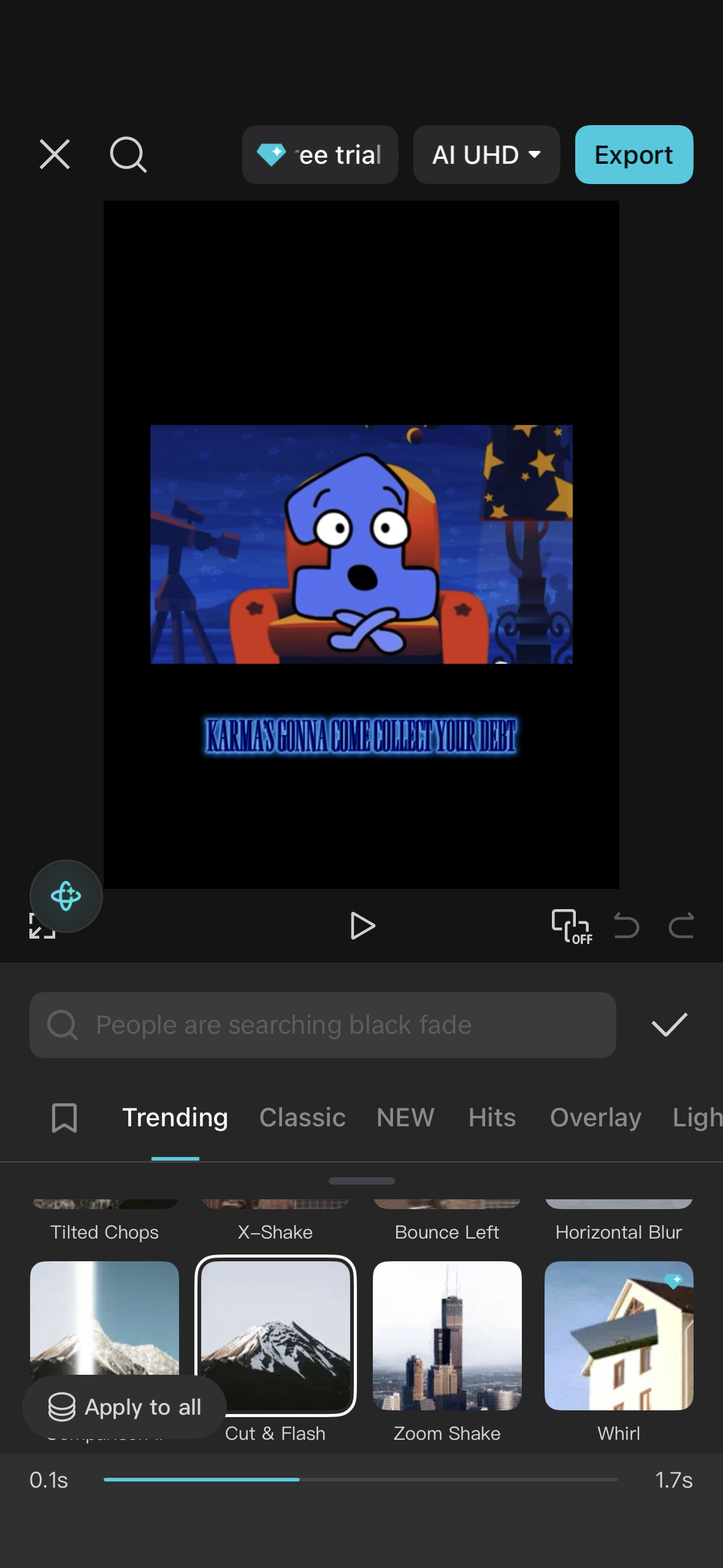
For the end of the video, where I added the many photos, the effect is actually quite simple. Add your images, set the duration to the same short length, no longer than .5 seconds each, and use the ame transition each time. This is the product:
Great work editing all those videos! You can now click the home button to head back and quiz yourself!